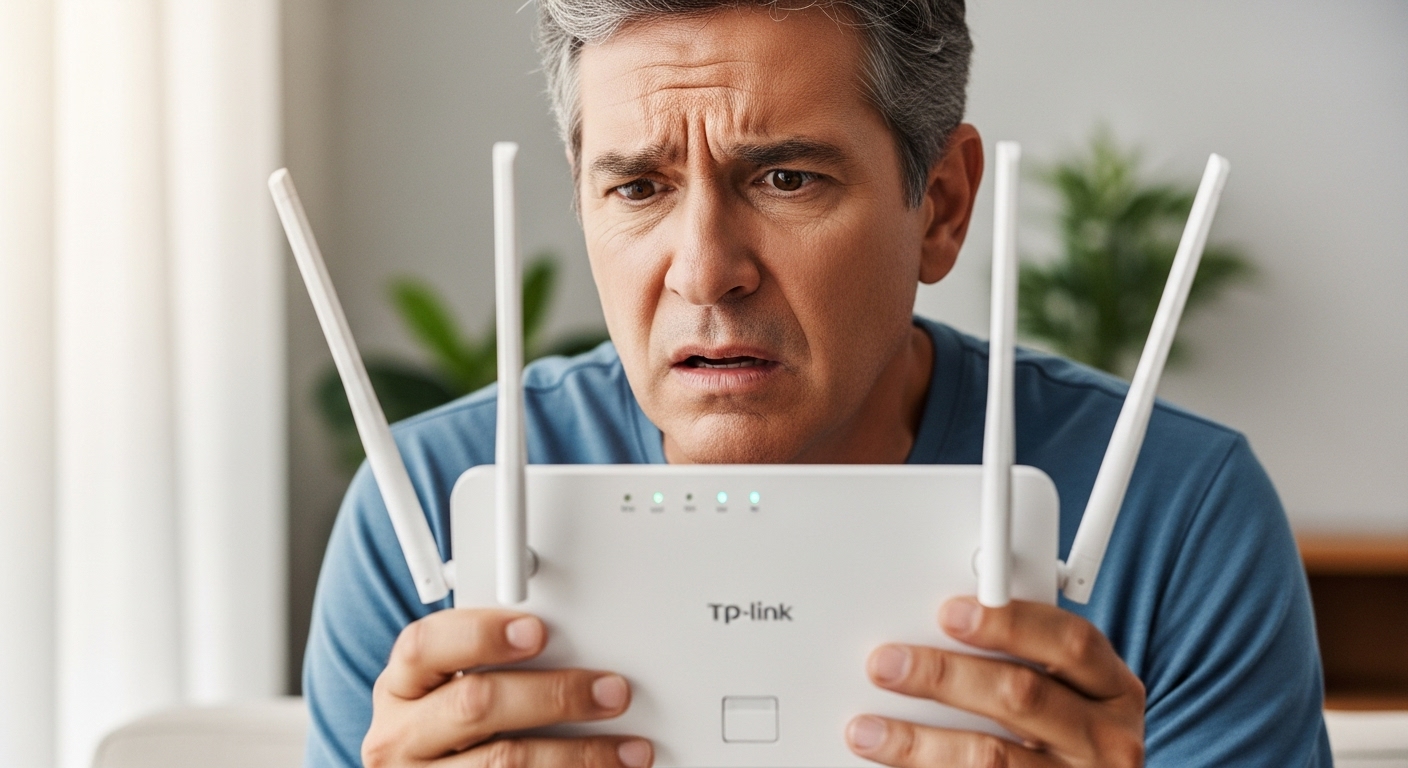
You forgot your password. TP-Link router And you can't access the settings anymore? Don't worry! In this complete guide, you will learn how to reset TP-Link router in Brazil in a simple and effective way, recovering full access to your device.
What you will find in this article:
Why Reset a TP-Link Router?

There are several situations where you may need to reset your TP-Link router:
- Forgot administrator password Control Panel
- Connectivity problems persistent
- Incorrect Settings preventing proper operation
- Sale or transfer from equipment to someone else
- firmware Problems requiring restoration of default settings
How to Reset TP-Link Router in Brazil: Step by Step
Required Materials
Before starting the process of how to reset TP-Link router in Brazil, you will need:
- Your TP-Link router connected to the power
- A paper clip or similar pointed object
- Access to a computer or smartphone
- Patience to follow the procedure correctly
Step 1: Locate Reset Button
In all TP-Link router models available in Brazil, the reset button is located:
- On the back equipment
- Next to WPS button
- Inside a small hole to prevent accidental triggering
Step 2: Run Physical Reset
To reset TP-Link router in Brazil correctly:
- Keep the router on. in electricity
- Insert the clip in reset button hole
- Press and hold down for exactly 15 seconds
- Watch the lights router during the process
- Wait until only the WPS light remains on
Step 3: Reset Confirmation
You will know that reset was successful when:
- All router lights go out momentarily
- Only the WPS light remains on
- Autostart router
- Default settings restored
Accessing Router After Reset
Connecting to Router
After learning how to reset TP-Link router in Brazil, you need to restore the connection:
Option 1: Connection via Cable Ethernet
- Connect an Ethernet cable to one of the orange router doors
- Connect the other end to your computer
Option 2: Wi-Fi connection
- Search the default router Wi-Fi network
- Network name is usually on the equipment label
- Connect using the default password
Accessing the Administrative Panel
- Open your browser (Chrome, Firefox, Safari, etc.)
- Enter default IP: 192.168.0.1 or 192.168.1.1
- Press Enter to access the login page
- Use default credentials (generally admin/admin)
Initial Settings After Reset
Creating New Administrator Password
After reset TP-Link router in Brazil, it is essential:
- Create a strong password for the administrator
- Note password in a safe place
- Confirm new password System
- Save Settings
Recommended Basic Settings
For users in Brazil, we recommend setting up:
Wi-Fi Network Name (SSID)
- Choose a unique and identifiable name
- Avoid personal information in the name
- Use simple characters for better compatibility
Wi-Fi Network Password
- Create a strong password with at least 8 characters
- Combine uppercase, lowercase, numbers and symbols
- Avoid obvious passwords like "123456" or "password"
Security Type
- Select WPA2 or WPA3 for maximum security
- Avoid using WEP (obsolete and insecure)
TP-Link Popular Router Models in Brazil
The procedure of how to reset TP-Link router in Brazil works for all models including:
Archer Line
- Archer C6: AC1200 dual-band router
- Archer C7: AC1750 model with high performance
- Archer C9: AC1900 router for professional use
- Archer AX10: Input Wi-Fi 6 model
TL-WR line
- TL-WR740N: 150Mbps basic model
- TL-WR841N: Router 300 Mbps popular
- TL-WR940N: Improved version with 3 antennas
Deco Line (Mesh)
- Deco M4: Mesh system for medium houses
- Deco X20: Mesh Wi-Fi 6 high performance
- Deco M9 Plus: Advanced tri-band system
Common Problems and Solutions
Reset Not Working
If reset does not work properly:
- Check that the router is on in energy
- Keep the button pressed for longer (up to 30 seconds)
- Use a thinner object to press the button
- Wait longer for completely reset router
Unable to access 192.168.0.1.
Try these solutions:
- Test alternative IP: 192.168.1.1
- Check connection between device and router
- Disable proxy browser
- Clear the cache browser
- Try another browser
Default Password Does Not Work
If the default credentials don't work:
- Check tag router for specific credentials
- Try common combinations: admin/admin, admin/password
- Run a longer reset (30-60 seconds)
- Contact technical support TP-Link Brasil
Security Tips Important
After Reset TP-Link Router
Always change default passwords
- Administrator password
- Wi-Fi network password
- Disable WPS if not necessary
Keep firmware up to date
- Check monthly updates
- Enable automatic updates if available
- Download firmware only from TP-Link official website
Configure access control
- Activate integrated firewall
- Configure content filters if needed
- Monitor regularly connected devices
When to Find Technical Support
Seek professional help if:
- Reset does not solve connectivity problems
- There are apparent hardware problems
- You don't feel comfortable with the settings
- Need advanced business settings
Reset Switches Complete
Partial Reset via Web Interface
Before doing the physical reset, try:
- Access the administrative panel
- Go to System Settings
- Look for "Restore Settings"
- Select "Partial Reset"
- Confirm operation
Password Recovery
If you remember the user but not the password:
- Use the "Forgot Password" function if available
- Try common passwords which you usually use
- Check old notes configuration
- See other users Network
Conclusion
Know how to reset TP-Link router in Brazil is an essential skill for any user of Internet. The process is simple and effective, allowing you to regain access to your equipment within minutes.

- Units per kit: 1. | Single band of 2.4. | It has 2 external antennas and an internal antenna. | It has 18 doors to connect. | ...
Always remember:
- Follow steps exactly as described
- Have patience during the process
- Create secure passwords after reset
- Keep settings up to date
With this complete guide, you are prepared to reset any TP-Link router available in the Brazilian market. Keep this tutorial saved for future queries and share with friends who may need this information.
Need more help?
If you followed all the steps of how to reset TP-Link router in Brazil and still have doubts, consider:
- Please refer to the specific manual of your model
- Contact TP-Link Brasil technical support
- Find help from a network specialist
- Check for updates to this guide
Remember: a well-configured router is critical for a stable and secure internet connection in your home or office in Brazil.