
Introduction: How much RAM windows 11 Do You Really Spend?
O Windows 11 consumes between 2 and 4 GB of RAM just to work in idle mode. Many users are surprised by this number. If you have 8 GB of total RAM, half is already compromised.
This article unveils all the details about memory consumption. Let's show real values, not vague estimates. You will learn how to optimize your system today.
Understanding this consumption is essential to choose your next PC. It also helps improve the performance of the equipment you have now.
Windows 11: Base Consumption The Real Numbers
At clean startup, Windows 11 uses approximately 2.0 to 2.5 GB RAM memory. This is the minimum floor for the operating system to function. No additional applications are running.
When Windows 11 is at rest with open standard applications, consumption rises to 3 to 4 GB. This includes the File Explorer, antivirus and system processes. A Microsoft recommended at least 4 GB of RAM for Windows 11.
With open browser and some applications, you easily reach 6-8 GB. These numbers vary according to hardware. Processors and SSDs influence final consumption.
Machines with less than 4 GB suffer greatly. The system creates pagination files on hard drive, making everything slow. The experience gets frustrating quickly.
Consumption by Type of Use
To light navigation (read emails, documents), you need 4 to 8 GB. A Chrome tab consumes about 300 to 500 MB. Ten tabs can use 3 to 5 GB alone.
To moderate work (Word, Excel, Photoshop), the ideal is 16 GB. Programs like Photoshop consume 1 to 2 GB just opening. With large files, it goes up more.
To video editing and gaming, 32 GB is the minimum recommended. Software like Adobe Premiere consumes 4 to 8 GB easily. Modern AAA games need 8 to 16 GB.
Which Processes Consume more RAM on Windows 11?
The process "System" is always the biggest consumer on Windows 11. He manages hardware resources. You can use 500 MB to 2 GB depending on the activity.
The integrated antivirus "Windows Defender" consumes 200 to 800 MB. This program runs in the background continuously. You can't disable it without leaving the system vulnerable.
O File Explorer uses 200 to 400 MB when open. With many folders loaded, you can reach 1 GB. Each installed extension adds more consumption.
Update services "Windows Update" consume variable resources. During updates, you can use 500 MB to 2 GB. These peaks are normal and temporary.
Applications That Consume More RAM
Browsers lead consumption on many PCs. Google Chrome It uses 300 MB per tab on average. Firefox is more efficient, with 150 to 250 MB per tab. Edge (native of Windows 11) uses less, 200 to 300 MB.
Communication programs like Teams and Discord run in background. Teams consume 300 to 600 MB even inactive. Discord uses 200 to 400 MB. Together they can compromise a lot of RAM.
Productivity software weighs heavily. Photoshop uses 1 to 2 GB just opening. Premiere Pro consumes 3 to 5 GB with moderate projects. AutoCAD can reach 4 to 8 GB in complex projects.
Windows 11 Do You Really Consume More RAM than Windows 10?
Yes, Windows 11 is 15% to 25% heavier that Windows 10. On startup, Windows 10 uses 1.5 to 2 GB. Windows 11 uses 2 to 2.5 GB. The difference increases with more open applications.
This difference comes from new features. Windows 11 has better security management, renewed interface and integrated artificial intelligence. These features cost memory.
Users with 8 GB feel that difference more. On Windows 10, you could work comfortable. On Windows 11, 8 GB is tight for heavy multitasking.
Still, Windows 11 is more optimized in some respects. The memory manager avoids leaks better. But the total consumption is definitely higher.
"Windows 11 requires at least 4 GB of RAM to work, but 8 GB is recommended for proper experience. For real multitasking, 16 GB is ideal." — Official Microsoft Documentation
How to Check RAM Consumption on Your PC
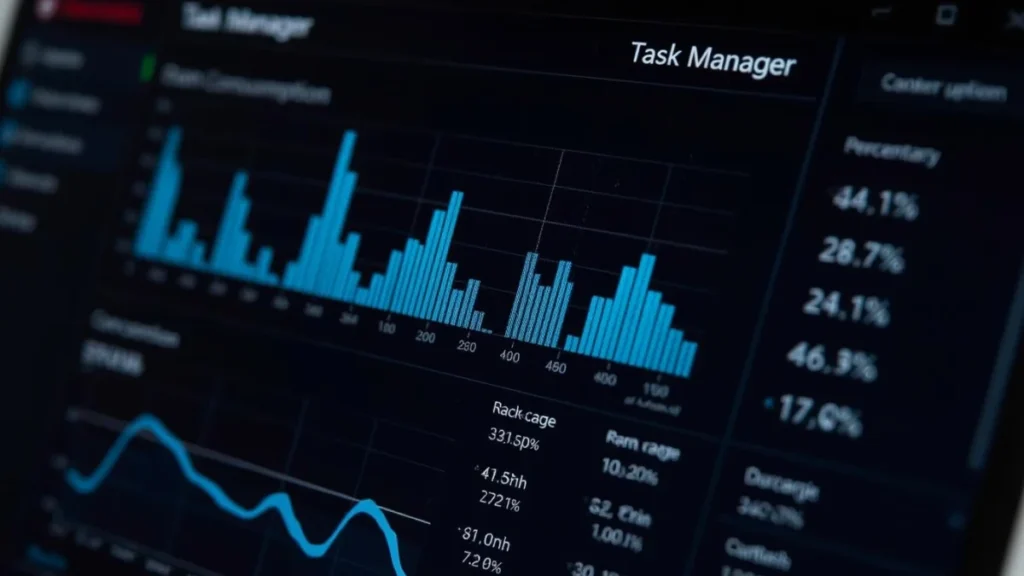
The easiest way is to open the Task Manager. Press Ctrl + Shift + Esc simultaneously. The performance tab shows real-time RAM.
You can also use the command "tasklist /v" Command Prompt. This method lists all processes with individual consumption. Provides more technical details.
A third option is to use free programs like HWINFO or CPU-Z. These softwares monitor continuously. They offer historical consumer graphics.
For advanced users, Event Viewer records everything. Go to Windows Logs > System for detailed analysis. That requires technical knowledge.
- Open Task Manager (Ctrl + Shift + Esc)
- Click on the "Performance" tab
- Select "Memory" in the left panel
- Observe values in real time at the bottom
- Analyze consumer history graphs
- Identify peaks and heavy processes
Practical Tips to Reduce RAM consumption
The first clue is disable applications on startup. Many programs automatically open when connecting the PC. Go to Settings > Applications > Initialization to remove unnecessary ones.
Close browser tabs you're not using. Chrome is famous for consuming too much RAM. Each open tab is lost resource. Just keep the essentials.
Disable Windows 11 visual effects and animations. Go to Settings > System > About > Advanced System Settings. Disable graphical effects to save RAM.
Increasing virtual memory helps in extreme cases. But it's much slower than physical RAM. Use only as a last resort before upgrading the hardware.
Settings Recommended RAM per Profile
Casual User (social networks, videos, documents): 8 GB is the minimum acceptable. 16 GB is comfortable. Avoid PCs with less than 8 GB in 2026.
Professional User (development, design, analysis): 16 GB is the minimum standard. 32 GB is recommended for fluidity. Less than that causes daily frustration.
Gamer User (modern AAA games): 16 GB is practically mandatory. 32 GB guarantees experience without choking. Game components and settings also matter a lot.
How much RAM Do You Really Need it in 2026?
The answer depends on your usage profile. For browsing and basic documents, 8 GB works. But you will feel limitations with multiple tabs and applications.
For modern professional work, 16 GB is the default in 2026. Practically all software requires that. It's the smartest investment for the near future.
For content creators and gamers, 32 GB guarantees comfort. Prices dropped significantly in 2025-2026. It's accessible to more people now.
Remember, more RAM is always better. Your investment lasts five to seven years. Better to buy more than regret it later.
FAQ: Frequently Asked Questions
Windows 11 with 4 Does GB of RAM work well?
It works, but with severe limitations. 4 GB is only the official minimum. The operating system consumes 2 to 2.5 GB. Only 1.5 to 2 GB left for your apps. Multitasking is practically impossible. Any open browser or editor makes the PC slow. We create pagination files on disk (much slower). Only use 4 GB if absolutely necessary.
8 GB RAM is enough for Windows 11 in 2026?
Depends on your use. For simple tasks (email, documents, videos) is enough. But comfort is limited. With open browser and some applications, you use 6 to 7 GB. Leaves little room. Heavy multitasking causes crashes. For developers, designers or gamers, 8 GB is insufficient. We recommend 16 GB for total tranquility.
Does Chrome consume too much RAM on Windows 11?
Yeah, Chrome's notoriously heavy. Each tab consumes 300 to 500 MB on average. Ten tabs occupy 3 to 5 GB alone. Extensions make the situation worse. Firefox is 30% more efficient. Edge (integrated to Windows) is even better. If you use many tabs, consider switching browsers. Or increase to 32 GB of RAM.
Can I add more RAM to my PC?
Usually, but it depends on the hardware. Notebooks may have limited slots. Desktops allow easy expansion. Check your motherboard for compatibility. DDR5 RAM is standard in 2026. DDR4 still works on old PCs. See your equipment manual. Upgrading is simple and cheap — The smartest operation you can do.
Conclusion: Make the Right Choice
O Windows 11 consumes between 2 and 4 GB of RAM Just to work. That's an unchanging fact. The total amount you need depends on your apps.
For comfortable experience in 2026, we recommend 16 GB as standard. It's the investment that doesn't disappoint. If you use PC for content creation, gaming or development, consider 32 GB.
Do not buy a PC with less than 8 GB in 2026. The market has evolved. Upgrading RAM is the best decision for the near future. Your productivity and sanity will thank you!