The digital age brought with it a growing demand for screen space. Whether you are an avid gamer in search of total immersion, a professional who needs to manage multiple windows and data simultaneously, or a content creator who deals with complex timelines and visual references, setting a single monitor often seems limiting. This is where the magic of use 3 monitors on your PC enters the scene, radically transforming his computer experience.
Why Three Monitors? The Revolution of the Desktop
The idea of expanding your desktop to multiple monitors is not new, but the accessibility and optimization of modern technologies have made this configuration more feasible and attractive than ever before. With three monitors, you not only double or triple your visual space; you multiply it in terms of functionality and efficiency.
Imagine having your text editor on one screen, your search or email on another, and a chat or collaboration tool on the third. For gamers, this translates into an expanded field of view that literally puts you inside the game, eliminating the edges of the screen and filling your peripheral view. Productivity fires, immersion reaches new levels and the way you interact with your computer is redefined.
The Foundations of Hardware: What You Need
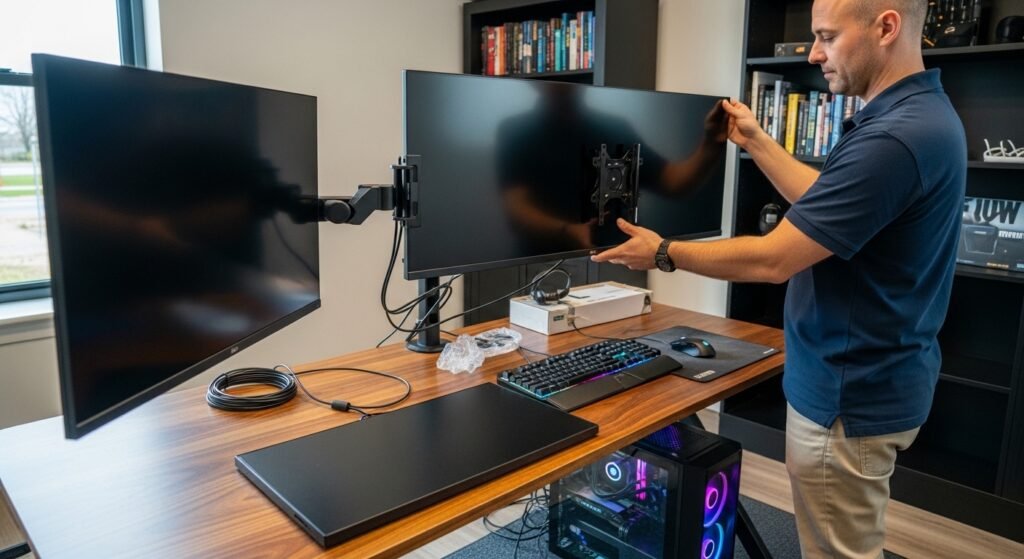
Before diving into the configuration, it is crucial to ensure that your hardware is up to the task. The heart of any multi-monitor configuration is your video card (GPU).
Your Video Card: The Central Piece
Most modern video cards from medium to high range has multiple video outputs (HDMI, DisplayPort, DVI), usually three or more. It is essential to check that your GPU has the required number of ports compatible with your monitors. Older boards may have limitations on the number of monitors they can support simultaneously, even if they have physical doors. Check your plate manufacturer's specifications to confirm the multi-monitor capability.
Ideal Monitors
Although you can mix and combine monitors, the most cohesive and enjoyable experience is obtained with three identical monitors or at least very similar in size, resolution and upgrade rate. This minimizes differences in color, brightness and scale between the screens, providing a smooth visual transition. Monitors with thin edges (bezels) are highly recommended, especially for games, as the edges between the screens become less intrusive.
Cables and Connectivity
Make sure you have the right cables for each monitor (HDMI, DisplayPort, DVI-D). If your monitors and graphics card use different types of ports, you may need adapters. Prefer DisplayPort whenever possible, as it usually offers the highest bandwidth and easily supports high resolution and refresh rate settings on multiple monitors. Make sure the cables are of good quality to avoid loss of signal or artifacts.
Configuring Software: Windows and Beyond
With the hardware connected, it's time to set up the software to recognize and manage your three monitors.
Basic Windows Settings
1. **Connect Monitors:** Connect all your monitors to the PC and then turn on the PC. Windows usually automatically detects new monitors.
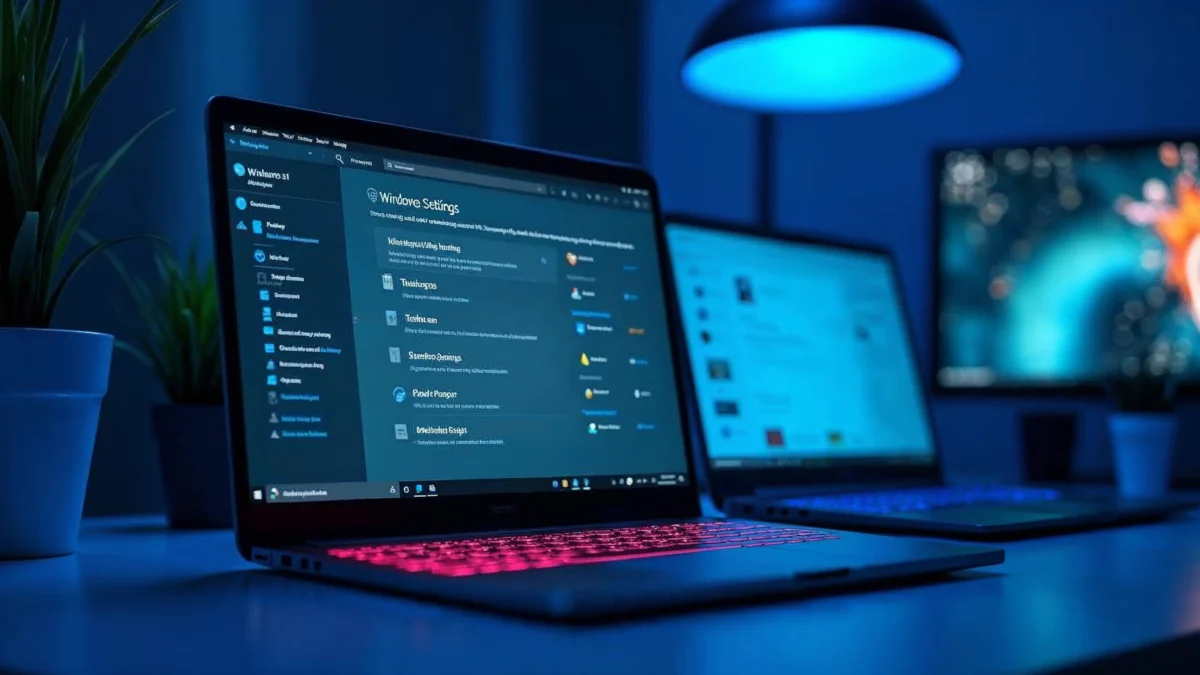
2. **Access Display Settings:** Right click on the desktop and select "Display Settings".
3. **Detect and Organize:** If any monitor is not detected, click "Detect". Then drag and drop the monitor icons in the settings window to match your physical layout on the table. This is crucial for the mouse cursor to move intuitively between the screens.
4. **Display Mode:** Select "Extending these videos" from the "Multiple videos" drop-down menu. This creates a single large desktop that extends across all screens. Avoid "Double these videos" unless you need all screens to show exactly the same thing.
5. **Resolution and Guidance:** Check that the resolution of each monitor is set for its native resolution for the best image quality. You can also adjust the orientation (landscape or portrait) if you have a rotated monitor.
Optimization for Games: NVIDIA Surround and AMD Eyefinity
For a truly immersive gaming experience on three monitors, you will need to use the proprietary technologies of your graphics card:
- **NVIDIA Surround:** For NVIDIA graphics cards, NVIDIA Surround allows you to treat your three monitors as a single ultrawide screen. This is configured via the NVIDIA Control Panel in the "Setting Surround, PhysX" section. Follow the instructions to enable and configure your monitor layout.
- **AMD Eyefinity:** Board users AMD can activate AMD Eyefinity via Radeon software. Similar to Surround, Eyefinity combines the monitors into a single display group, allowing the games to extend perfectly across all screens.
These technologies are essential for games, as they ensure that the image is correctly rendered on all screens, with the perspective and field of view adjusted for a continuous experience.
Maximizing Productivity and Immersion
With its three monitor configuration running, the possibilities are vast. For professionals, the ability to have multiple open and visible documents, browsers and applications simultaneously eliminates the constant need to switch between windows, saving time and reducing mental fatigue.
Developers can have their code on one screen, documentation on another and running application on the third. Video editors can have the extended time line, a preview window, and separate tool panels.
For gamers, experience is transformative. Games compatible with ultrawide or multi-monitor resolutions fill your peripheral vision, creating a feeling of being really inside the game world. Races, flight simulators and first-person shooters gain a new dimension of realism and immersion. It's a tactical advantage and a visual delight that a single monitor just can't replicate.
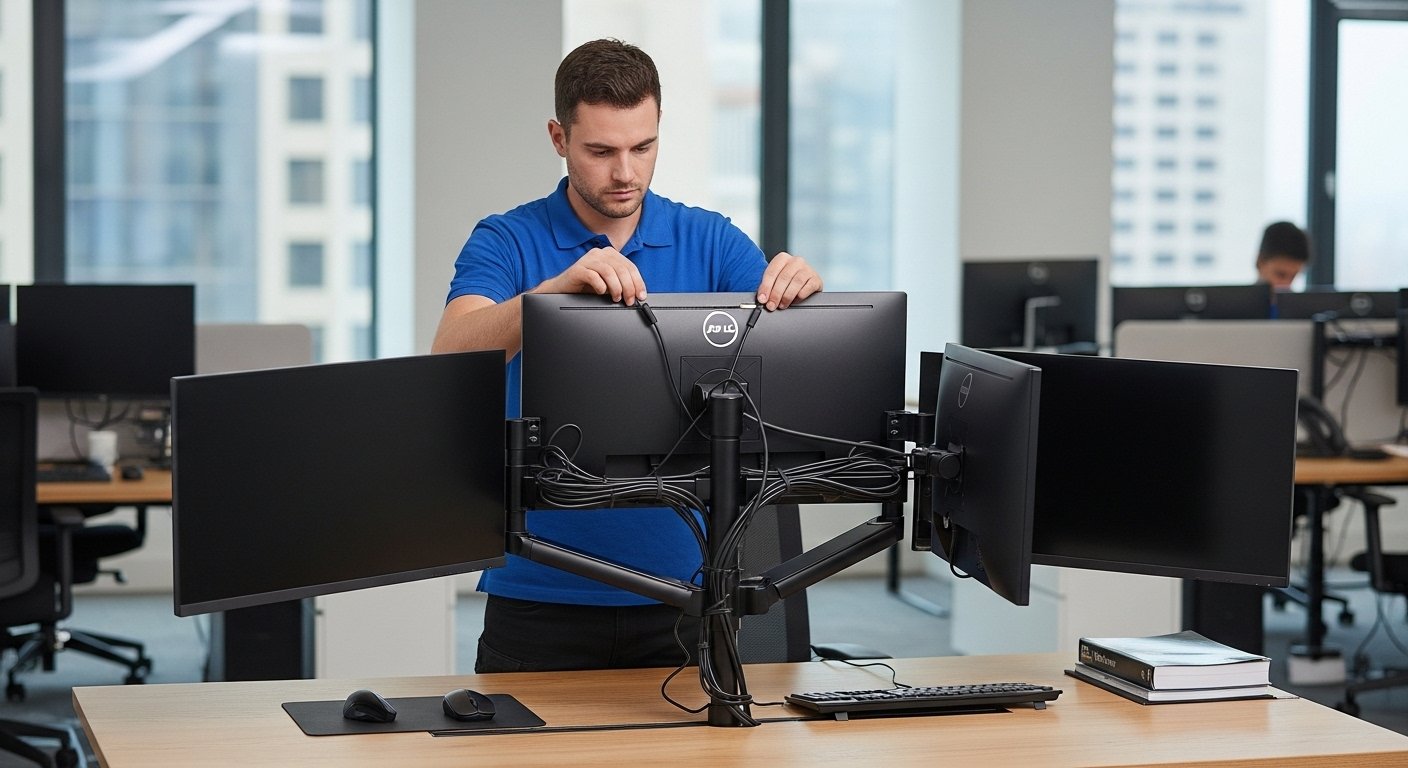
When planning your three monitor configuration, consider the physical space on your desk. A triple monitor support can be an excellent acquisition to save space and allow ergonomic adjustments. Pay attention to ergonomics; make sure your monitors are at the right height and distance to avoid tension in the neck and eyes.
Managing cables is also important to keep your work area organized and accessible. Although the initial configuration may seem somewhat complex, the long-term benefits in terms of productivity, immersion and convenience far outweigh the initial investment of time and effort. The transition to a multiple monitor setup is more than just adding screens; it is a fundamental update in your interaction with the digital world, opening doors to an efficiency and a pleasure you never knew you were missing.