Face one Windows 10 startup failure can be one of the most frustrating experiences for any user. It is estimated that more than 30% of users of Windows they have faced some kind of initialization problem, which completely paralyzes access to the system.
But do not despair, because most of these problems have a solution. This complete guide of TecNerds. with.br It will show you the step by step to diagnose and solve the most common flaws, bringing your computer back to life.
Understanding the Common Causes of Windows 10 Boot Failure
When Windows 10 refuses to start, frustration is enormous. Many factors can trigger this problem. Knowing the origins helps to find the best solution. It is crucial to identify whether the fault is software or hardware.
Problems with system updates are frequent causes. Corrupted files also prevent normal startup. Out-of-date or incompatible drivers generate conflicts. That makes the system lock on the boot.
Hardware failures are equally worrying. One defective RAM memory It could be her fault. A hard drive with bad sectors also causes boot loops. Always check the condition of the physical components.
Virus and malware infections are another threat. They can corrupt vital system files. Program overload on startup also slows the process. Keeping the system clean is fundamental.
Hardware vs. Software: How to Differentiate
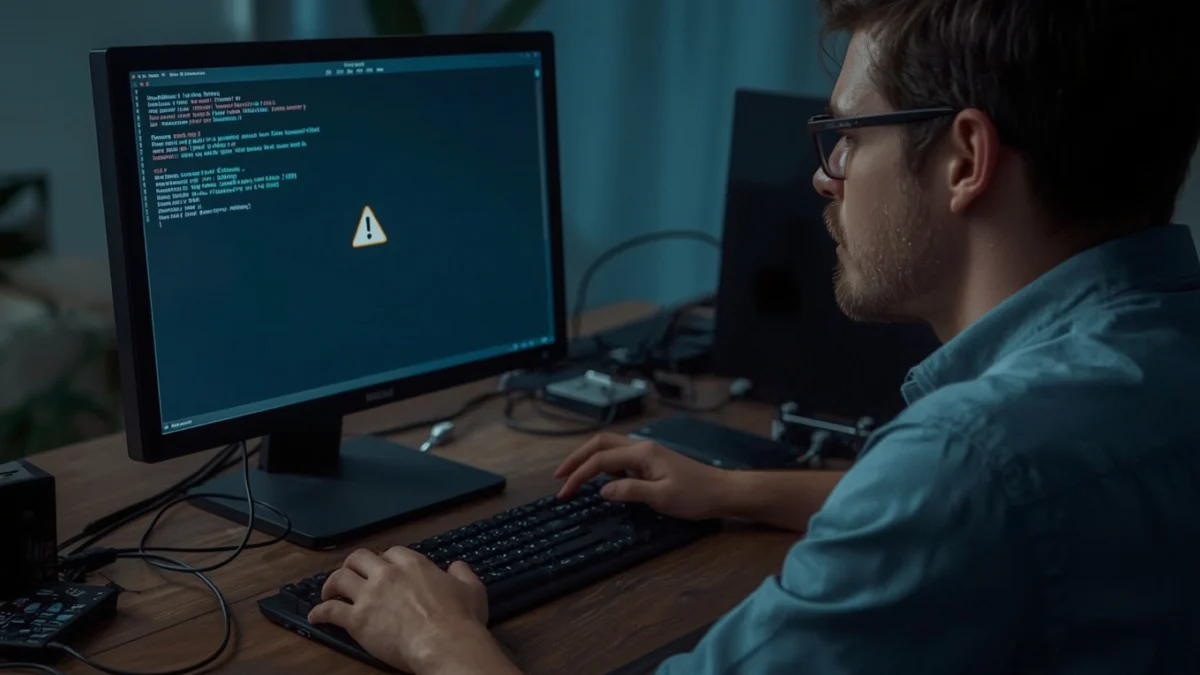
Identifying the nature of the problem is the first step. Pay attention to visual and sound signals. Blue screens (BSOD) usually point to drivers or memory. Specific error messages are important.
If the computer gives no sign of life, it's more likely to be hardware. No fan spins, no lights go on. Motherboard beep sounds indicate component failures. See the license plate manual for the code.
On the other hand, if Windows starts loading, but locks, it can be software. A boot loop points to the operating system. Problems with boot disk are common. Use diagnostic tools.
Connecting new hardware and system failure is a good clue. In this case, the newly installed device may be the culprit. Disconnect it to test. Careful debugging saves time.
First Essential Steps: Quick Diagnosis for Windows Boot
How to Fix Failure Initialization Windows 10
Before you panic, try a few simple steps. They can solve the Windows 10 startup failure Quickly. Many problems are caused by peripherals or cables. Don't underestimate simplicity.
Turn off the computer completely. Press and hold the power button for 10 seconds. This unloads any residual energy. Then turn it back on for testing.
Removing external devices can be the key. They could be causing conflict. A faulty external drive or hard drive blocks the boot. Old keyboards or mice can also be problematic.
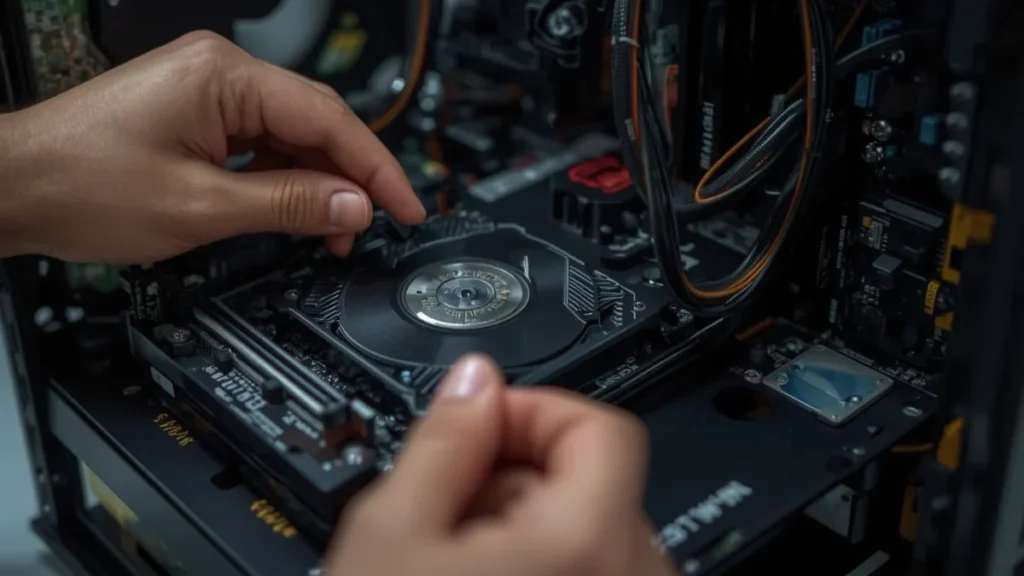
Checking internal connections is vital. Make sure all cables are steady. Data cables SATA or loose energy prevent disk detection. A detailed visual check is recommended.
Disconnecting Peripherals: A Simple Solution
Start by disconnecting all USB peripherals. This includes printers, webcams and headphones. Just keep the monitor, keyboard and mouse essential. Try to start the computer again.
If the PC starts, the problem was on one of these devices. Reconnect them one by one to identify the culprit. This requires patience and method. This process isolates the defective component.
Checking Internal Cables and Connections
Open your desktop cabinet carefully. Check the power lines on the motherboard. Check the SATA cables on your hard drives and SSDs. Make sure they're well fitted.
For notebooks, the situation is more complex. If you don't feel safe, look for a professional. Incorrect manipulation can cause more damage. Security is paramount.
Accessing Windows 10 Recovery Environment
If the basic steps fail, you will need advanced tools. Windows Recovery Environment (WinRE) is powerful. It offers several options for fix Windows 10 startup failure. Accessing it can be a challenge.
Usually Windows will try to enter WinRE automatically. This happens after several consecutive failures. If you don't get in, force the input by turning off the PC. Do this three times in a row during startup.
With the PC on, press and hold the power button. Force the shutdown. Repeat this process three times. On the fourth attempt, WinRE will appear. You will see the screen "Preparing Automatic Repair".
Another way is to use a Windows 10 installation disk. Or a bootable flash drive. Start the computer for him. On the installation screen, click "Repair the computer". That also leads to WinRE.
Starting in Diagnostic Security Mode
Security Mode starts Windows with minimal drivers and services. This helps isolate software problems. If the system starts in Security Mode, the problem is not fundamental.
Inside WinRE, go to Troubleshooting. Then "Advanced options." Choose "Starting Settings". Click "Restart" and then "4" or "F4" to activate Security Mode.
Once in Security Mode, you can uninstall recent programs. Check problem drivers in Device Manager. Run antivirus and remove malware. It's a debugging environment.</pYour Pc doesn't care? How to Fix Failure Initialization Windows 10 And Save Your Data! 2