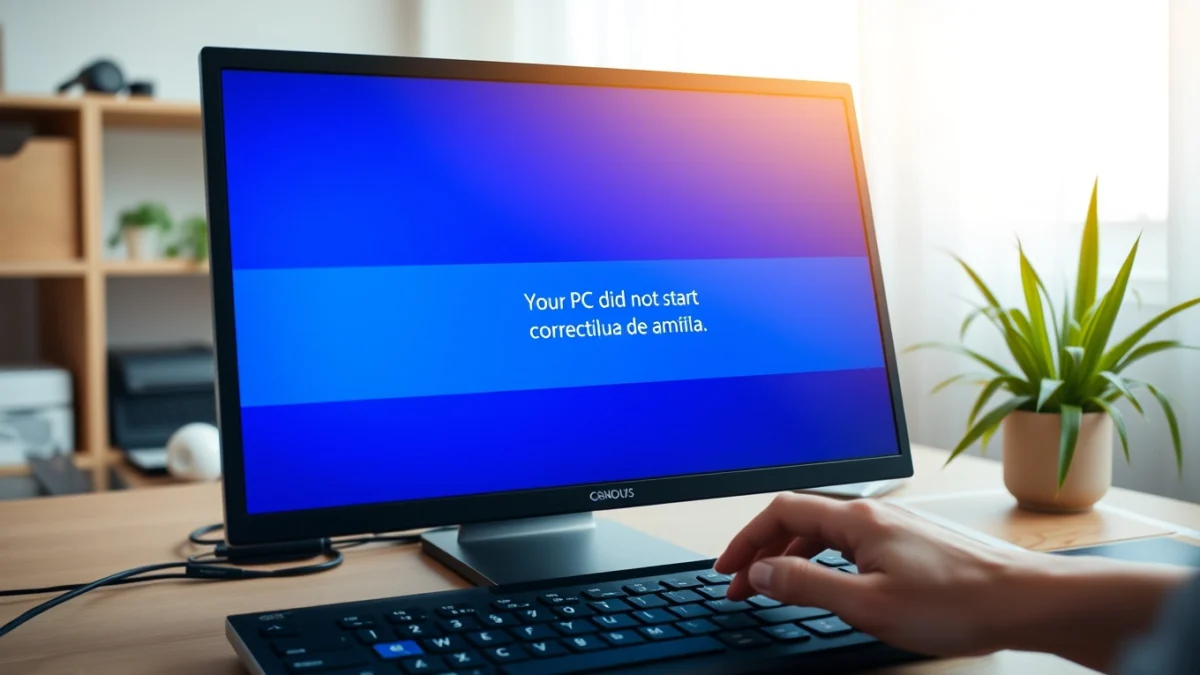
Message your pc was not started correctly can cause despair on any user. Did you know that more than 30% of PC technical support problems are related to boot failure? This error prevents access to the operating system by interrupting its activities.
Fortunately, there are several effective solutions to this scenario. This complete guide, updated to 2026, offers a clear roadmap. You will learn to diagnose and correct the most common problems regardless of your experience.
Understanding the Message "Your PC Has Not Started Right"
This message appears when Windows encounters a critical failure while trying to load. It indicates that the operating system failed to start regularly. This can be caused by a number of internal or external factors.
Generally, the system offers automatic recovery options. However, it is often necessary to intervene manually. Understanding the root cause is the first step to the definitive solution.
The blue screen can display a specific error code. Write him down because he might be useful in the diagnosis. This information better guides the search for appropriate solutions.
First aid: What to Do Immediately?
When faced with the error screen, calm is essential. Do not panic because many failures are easily solved. Start with simple and logical checks.
First, restart the computer. A temporary error may have occurred. Sometimes this simple action already solves the problem, allowing a normal startup.
If rebooting doesn't work, pay attention to the sounds. Different beeps may indicate hardware problems. See your motherboard manual to decipher the beep codes.
Checking Connections and Peripherals
Turn off the PC completely from the socket. Make sure all the cables are well connected. This includes the power cable, HDMI/DisplayPort and internal SATA or M.2 cables.
Remove all unnecessary peripherals. This includes printers, flash drives, webcams and headphones. They may be causing hardware conflicts during startup.
Try to start the PC again after this cleaning. A faulty peripheral could be blocking the boot. If it starts, connect the devices one by one to identify the culprit.
Accessing Windows Recovery Environment (WinRE)
When the common reset fails, WinRE is your main ally. It offers advanced repair tools. Accessing it is crucial for most solutions.
To enter WinRE, you usually need to turn off the PC three times. Turn it on and as soon as the Windows logo appears, force the shutdown. Repeat that for three cycles.
In the fourth attempt, Windows must start the Recovery Environment. You will see the screen ‘Preparing Automatic Repair’. Follow the instructions to access the advanced options.
Advanced Repair Options
Inside WinRE, navigate to ‘ Troubleshooting’ and then ‘Advanced Options’. Here you will find several tools. They're designed to restore the system.
One of the first options to try is ‘Repair Initialization’. This tool tries to fix problems that prevent Windows loading. She checks essential system files.
Another vital option is ‘System Restoration’. If you created restore points, you can reverse the PC. This undoes recent changes that may have caused the problem.
Practical Solutions to Solve the Problem
Windows Recovery Environment is an arsenal of tools. Let's explore the most effective. They can save your system in 2026, avoiding a complete resettlement.
A **System Restoration** It's powerful, but it depends on restoration points. Always create a point before major changes. This guarantees a safe return in case of failures.
O **Command Prompt** offers full control over the system. Use it to execute diagnostic and repair commands. Tools like chkdsk and sfc They're valuable here.
For more details about recovery options, see Microsoft's official support. There you will find detailed information about Windows recovery solutions.
Here are practical steps you can try within WinRE:
- **Initialization Repair:** Try to fix it automatically.
- **System Restoration:** Revert the PC to a previous point.
- **Uninstall Updates:** Removes recent failed updates.
- **Command prompt:** For advanced diagnostics.
- **Security Mode:** Starts Windows with minimal drivers.
No **Security Mode**, you can uninstall problem drivers. You can also remove newly installed software. It helps isolate the cause of the boot error.
Using Command Prompt to fix the master boot record (MBR) is another alternative. Commands as bootrec /fixmbr and bootrec /rebuildbcd can be effective. They repair the boot structure of your disk.
For an in-depth view of how to repair startup, Tecnoblog offers a practical guide. You can learn more about how to repair Windows startup effectively.
"Persistence is key when solving technical problems. Often, the solution is in a sequence of attempts and errors until you find the right fit for your system."
When is Restoration the Best Option?
If attempts to repair fail, complete restoration may be necessary. This action erases all data and reinstalls Windows. It's the last card for seriously compromised systems.
WinRE offers the option ‘Remove everything and reinstall Windows’. This is a drastic but effective solution. It guarantees a clean system, free from software conflicts.
You can choose to keep your personal files during restoration. However, it is always recommended to make an external backup. Prevent against any unexpected data loss.
A new operating system installation eliminates deep problems. This includes corrupted system files and persistent viruses. It's like having a new PC.
Prevention: Avoiding Future Initialization Problems
The best way to deal with problems is to prevent them. Keep your Windows system up to date. Updates correct flaws and improve security.
Use a good antivirus and do regular scans. Malwares can corrupt boot files. Protect your PC from digital threats.
Create system restore points before installing new programs or drivers. This offers an easy way to reverse in case of problems. It is a simple and effective preventive measure.
Do regular backups of your important data on an external disk or in the cloud. Boot problems can lead to loss of information. Always be prepared for the worst.
My PC doesn't turn on or display the message, what to do?
Check the power cable and power supply. Test the socket and the office switch. If you don't turn it on yet, it could be a more serious hardware problem, like the source or the motherboard.
Try removing and reconnecting the CMOS battery from the motherboard. This can reset BIOS settings. In some cases, it may be necessary to look for a specialist technician.
Can I lose my files while solving the error?
Depends on the solution you apply. System Restoration usually does not affect personal files. However, a complete reinstallation of Windows without backup will result in data loss.
Always try the security mode or recovery environment first. If possible, back up your files. Use a flash drive or external hard drive for greater security.
What does blue death screen (BSOD) mean with this error?
The blue screen of death (BSOD) indicates a critical failure on Windows system. The error ‘Your PC was not started correctly’ is often accompanied by a BSOD.
Write down the error code displayed on the blue screen. He helps identify the cause. Problems of corrupted driver, hardware or system files are common.
How do you know if the problem is hardware or software?
If the PC does not turn on or displays anything on the screen, it is likely to be hardware. Strange beeps also point to hardware. Testing components individually can help.
If the message appears and you can access the Recovery Environment, it is more likely to be a software problem. Drivers, operating system or corrupted files are to blame.
Conclusion
The message "Your PC has not been started correctly" is a frustrating obstacle. But with the right tools and knowledge, it's a problem that can be solved. This guide provided a clear path to diagnose and resolve the most common failures, ensuring that you have a functional PC again in 2026.
Do not be discouraged before the blue screen; the solution is within your reach. Share your experiences and doubts in the comments. Visit Tecners for more tips and guides on technology!