Ah, the silence... Wonderful in meditations, but a nightmare when it comes to your computer. If yours PC is out of soundYou're not alone. It is one of the most frustrating problems and paradoxically one of the most common in the universe of computing.
Whether to work, study, play or simply relax with music and videos, audio is an indispensable part of the experience. No TecNerds, we understand the agony of a mute computer and therefore we compiled this definitive guide so that you can restore the voice of your PC in 2026.
With years of experience and expertise in the diagnosis and repair of systems, our team of experts has developed a complete step by step approach from the most basic checks to the most complex solutions.
No matter if the problem suddenly arose after an update or when connecting a new device; here you will find the tools and knowledge needed to put your audio back on track. Ready to put an end to silence and find out what to do when the PC is out of sound?
The Basic First: Essential Checks for the Sound of your PC
Before diving into complex settings and drivers, it is crucial to eliminate the simplest and most obvious causes. Often the solution to a PC without sound It's right in front of you, waiting for a quick and careful check. These steps are the starting point for any audio diagnosis and, believe me, solve most cases.
Cables and Connections: The Lost Audio Link
The first stop on our troubleshooting tour is physical verification. It seems simple, but a poorly connected cable is one of the most frequent reasons for the absence of sound. Check carefully all audio cables connected to your computer and your playback devices (sound boxes, headphones).
- P2 cables (3.5mm): Make sure that the P2 cable (usually green) is firmly plugged into the correct audio output on the back or front of your PC and the audio input of your sound boxes or headphones.
- HDMI/DisplayPort: If you use an integrated sound monitor or TV and the audio is transmitted via HDMI or DisplayPort, make sure that these cables are well connected to both PC and monitor/TV. Remember that these cables carry video and audio together.
- USB: For headphones or USB speakers, test the USB ports. Try connecting to a different port to discard a problem on the original USB port.
- Check Other Devices: Test your headphones or speakers on another device (cell phone, tablet, other computer). If they work somewhere else, you know the problem is on your PC, not the accessories.
- Check Phones/Boxes: Some headphones and boxes have their own volume controls and mute buttons. Make sure they are not silenced or with low volume.
A disconnect, however small, may be enough to leave your PC without sound. It is a common mistake, and the solution is equally simple: to reconnect everything firmly.
Volume and Change: The Simplest and Commonest Error
Yeah, it's embarrassing, but it happens. Often the audio is simply mutated or with very low volume. This is one of the first things our technicians check on support calls:
- Taskbar icon: In the lower right corner of the screen (usually close to the clock), look for the speaker icon. Click on it and make sure the volume is not zero or that the mute icon (a speaker with an ‘X’ or a bar) is enabled.
- Volume Mixer: Right-click the speaker icon and select Open Volume Mixer. Check volume levels for different applications (navigator, media player, games). Some programs may have their own volume adjusted individually.
- Keyboard: Many keyboards have function keys (usually F1-F12, combined with the Fn key) that control the volume and mute. Make sure you didn't press one of them accidentally.
These basic checks can save hours of frustration. If even after these steps your PC is still out of soundIt's time to go deeper.
Audio Drivers: The Heart of Sound in Your Computer
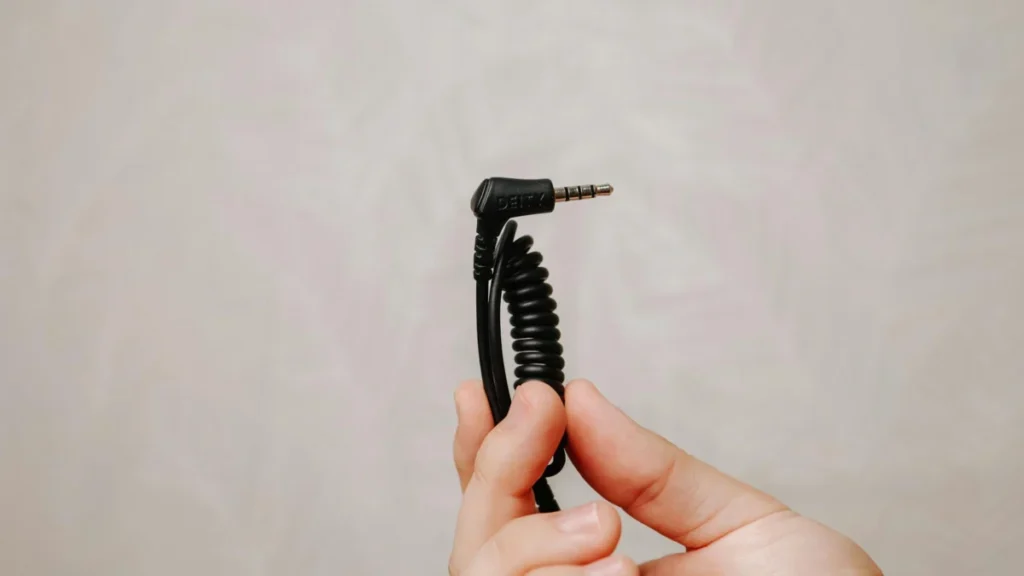
Photo: Luis Quintero / Pexels
If basic checks have not solved your problem PC without soundNext suspect is the audio driver. Drivers are software that allows your computer hardware (in this case, your sound card) to communicate with the operating system. Out-of-date, corrupt or missing drivers are an extremely common cause of audio problems.
Technical support data reveals that approximately 40% of PC audio problems are directly related to driver failures or outdated, making it one of the critical points of attention when solving a PC without sound.
Let's check and update your drivers:
- Access Device Manager:
- Press
Windows + Xand select "Device Manager". - Expand the section "Sound, video and games controllers".
- Search for entries related to your audio device (e.g. Realtek High Definition Audio, NVIDIA High Definition Audio, Connectant SmartAudio).
- Press
- Check Driver Status:
- If there is a yellow exclamation point next to an audio device, or if the device does not appear, this indicates a problem.
- Update Driver:
- Right-click on your audio device and select "Updating driver".
- Choose "Research drivers automatically". Windows will try to find the latest driver online.
- Reinstall Driver (if update does not work):
- If the update does not resolve or if Windows informs you that the best driver is already installed, right click again and select "Uninstall device".
- Mark the box "Delete driver software from this device", if available, and click Uninstall.
- Restart the computer. Windows will try to reinstall the driver automatically on startup.
- Manual Driver Installation (best practice):
- The most reliable way to get drivers is directly from manufacturer's website from your motherboard (for audio onboard like Realtek) or yours video card (for HDMI/DisplayPort audio such as NVIDIA or AMD).
- Visit the manufacturer's website, search for the exact model of your computer or motherboard, and download the latest audio driver compatible with your Windows version (e.g. Windows 10, Windows 11).
- Run the installer and follow the instructions.
TecNerds Experience Tip: Always prefer to download drivers directly from the manufacturer's website. They are optimized for your specific and generally more stable hardware than generic drivers provided by Windows Update. When searching for drivers, keep in mind the best digital security practices to avoid malicious software.
Windows Audio Settings: Diving in Options
Even with updated drivers, Windows audio settings can be a source of problems for a PC without sound. The operating system offers several options that control how and where the audio is played. It is essential to ensure that the correct settings are active.
Playable Devices: Pick the Right!
If you have multiple audio devices connected (phones, sound boxes, HDMI monitor, etc.), Windows may not be directing the sound to the correct device. See how to check and adjust:
- Access Sound Settings:
- Right-click the speaker icon on the taskbar and select Sound Settings.
- Alternatively, go to
Configurações > Sistema > Som.
- Choose Output Device:
- In the section Out, find the option "Choose an output device".
- Click on the drop-down menu and select the device you want to use (e.g. your headphones or speakers). Test each one if you have doubts.
- Manage Sound Devices:
- Roll the screen down and click "More sound settings" (or "Manage sound devices" in older versions of Windows). This will open the classic sound window.
- In the tab "Reproduction", you will see all your audio devices. Make sure the desired device is "Enabled" and defined as "Standard Device". Right-click on the device and select these options if necessary.
- Test the device by right clicking and choosing "Test".
In some cases audio devices specific to monitors (such as the sound of your HDMI monitor) can be enabled by default by deviating audio from your headphones or boxes. It is crucial to verify and define the correct device.
Audio Troubleshooting: Integrated Help
Windows provides an integrated troubleshooting tool that can in many cases diagnose and even automatically fix audio problems. It's an excellent first line of defense when your PC is out of sound And you don't know where to start.
- How to Use:
- Go on
Configurações > Sistema > Som. - In the section Out, locate the output device that is in trouble and click Troubleshooting (or "Executing troubleshooter" in other versions).
- Follow the instructions on the screen. The solver will try to identify and fix common problems such as corrupt drivers, stopped audio services or incorrect settings.
- Go on
Although not a panacea, the troubleshooting tool can save time and point to the right direction, especially for less experienced users. It is designed to solve the human-computer interaction when communication is broken by audio.
Software and Hardware Conflicts: Unexpected Causes for your Soundless PC
Sometimes the problem of a PC without sound does not reside directly in the drivers or audio settings, but in conflicts with other software or even with updates from the operating system itself. Understanding these potential frictions is crucial for a complete diagnosis.
Operating System Updates: Allies or villains?
Windows updates are designed to improve security and performance, but occasionally they can introduce bugs or incompatibilities that affect audio. If the sound stopped right after an update:
- Revert Drivers: In Device Manager (
Windows + X > Gerenciador de Dispositivos), right click on your audio device, go to "Properties" and on the tab Driver., see if the option Revert Driver It's available. If so, try it. - Uninstall Problem Updates: Go on
Configurações > Windows Update > Histórico de atualização > Desinstalar atualizações. If there is a recently installed driver or Windows update you suspect, try to uninstall it and see if the sound returns. - Update Pause: If you identify that a specific update is causing the problem, pause Windows updates for a period to wait for an official fix.
It's a rare but not impossible situation for an update to cause a PC without sound. Stay tuned for your system's history of events.
Third Party and Codecs Software: The Silent Fight
Third-party audio programs, codec suites (such as K-Lite Codec Pack) or even some antivirus can interfere with the normal functioning of your audio. These software can overwrite drivers, disable services, or create conflicts with the native Windows sound system.
- Uninstall Recent Audio Software: If you have installed some audio-related program recently (equalizers, sound enhancers, codec suites), try to uninstall it and restart the PC.
- Check Antivirus/Firewall: In rarer cases, the antivirus may be blocking some audio component. Try to disable it temporarily (with caution and only for testing) to see if the sound returns.
- Codecs Cleaning: If you installed multiple codec packages, they may be in conflict. Consider uninstalling them and installing only one well-known and reliable package, or rely on native Windows codecs and media players like VLC.
- Audio Services: Press
Windows + R, typeservices.mscand press Enter. Look for "Windows audio" and "Windows Final Audio Point Builder". Make sure both are set to Automatic and that the status is "Enforced". If not, right click and select "Start".
Unnecessary or conflicting software cleaning may be the key to solving your problem PC without sound.
Hardware Problems: When Silence Is Deep
If you have exhausted all software options and your PC is still out of sound, it's time to consider that the failure can be physical, that is, a hardware problem. This is less common, but it can happen, especially in older computers or after some physical intervention.
Dedicated Sound Board vs. Integrated: Diagnosis and Exchange
Most modern PCs use integrated audio on the motherboard. If there's a glitch in that audio chip, the sound could disappear completely. If you have a dedicated sound card (a PCI/PCIe expansion card):
- Integrated Sound Board: If you use the motherboard audio, try to disable it on BIOS/UEFI and, if possible, install a dedicated USB or PCIe sound card to test. This can confirm that the onboard chip is defective.
- Dedicated Sound Board: If you use a dedicated sound card, make sure it fits well into the PCIe slot. Try removing it, cleaning contacts (with school rubber or isopropyl alcohol) and reinserting. Test the PC without it (using integrated audio, if available and enabled in BIOS) to see if the problem disappears.
- Test with a USB Audio Adapter: A USB audio adapter is a cheap and fast solution to test whether your main sound card is defective. Connect it, install the drivers (usually Plug and Play) and try playing the sound for it. If it works, the fault is on your internal sound card.
Changing or adding a sound card (even if USB) may be the only way out when the problem is purely hardware.
Damaged Audio Outputs: The End of the Line?
Audio ports (P2) on the front or back of your PC can wear out or be physically damaged over time. If you always use the same door, it may have stopped working.
- Test All Doors: Try connecting your headphones or sound boxes to all audio outputs available on your PC (frontal and rear). If sound works on one door and not on another, the specific door may be damaged.
- Physical Damage: Inspect the doors visually. Are there crooked pins, excessive dirt or signs of corrosion? A broken pin can disable a door.