O performance of a computerr is crucial to ensuring that it works efficiently, without braking or slowness. Over time, it is normal that the operating system accumulates unnecessary files, configuration errors and other problems that can negatively impact your performance. This article presents a detailed guide with best practices for optimize Windows performance, approaching from simple adjustments to more advanced solutions.
What you will find in this article:
Why is Windows Slow?
Before exploring the solutions, it is important to understand the factors that can affect Windows performance:
- accumulation of temporary files: Files created during program execution may occupy unnecessary space.
- Background programmes: Many apps automatically start with the system and consume resources.
- Improper settings: Standard settings may not be ideal for your computer hardware.
- Malware and viruses: Malintentioned software can compromise system performance.
- Outdated hardware: Components like memory Insufficient RAM or slow hard drive also impact speed.
Now that we know the causes, we will explore the solutions.
1. File Cleaning Temporary
The temporary files are generated by the system and the programs during their use. Although useful in some cases, they can accumulate and occupy unnecessary space on the disk.
How to clean temporary files:
- Press
Windows + Rto open the "Run" window. - Type
tempand press Enter. - In the open folder, select all files (
Ctrl + A) and exclude them (Shift + Delete). - Repeat the process using the commands
%temp%andprefetchin the same field "Run".
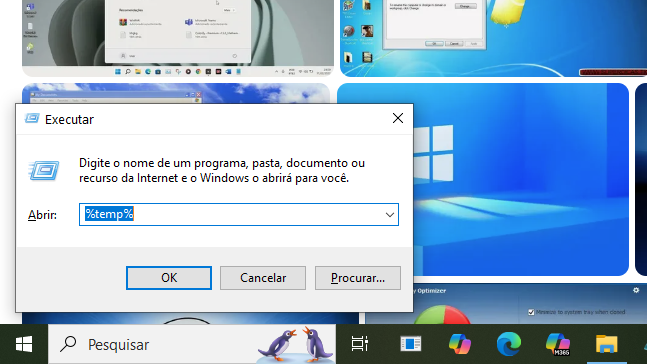
This cleaning can release disk space and improve performance.
2. Virtual Memory Adjustment
Virtual memory is an extension of RAM that uses hard drive space to store data temporarily. Adjust it can improve performance in systems with little RAM.
Steps to adjust the virtual memory:
- Open advanced system settings:
- Press
Windows + Q, type "Advanced System Settings" and select the option.
- Press
- In the "Advanced" tab, click "Settings" in the "Desempenho" section.
- Go to the "Advanced" tab again and click "Change" in the "Virtual Memory" section.
- Uncheck the "Automatically Manage the size of the pagination file" option.
- Select the main drive (usually C:) and choose "Customized size".
- Set an initial and maximum size based on your installed RAM:
- Example: For 8 GB of RAM, use values between 8192 MB (8 GB) as minimum and 16384 MB (16 GB) as maximum.
Click "OK" and restart the computer to apply the changes.
3. Disabling Programs in Initialization
Many programs set up to automatically start with Windows, consuming unnecessary resources.
How to disable programs at startup:
- Press
Ctrl + Shift + Escto open Task Manager. - Go to the Initiate tab.
- Identify unnecessary programs (not system-related) and click "Deactivate".
This reduces system startup time and improves overall performance.
4. Perform a Clean Boot
Clean startup helps identify if any program or service is interfering with performance.
Steps to perform a clean startup:
- Press
Windows + R, typemsconfigand press Enter. - In the System Configuration window, go to the "Services" tab.
- Mark the "Hide All Microsoft Services" option and click "Deactivate All".
- Go to the "Program Entry" tab and click "Open Task Manager".
- In Task Manager, disable all listed programs.
- Click "OK" in the System Configuration window and restart the computer.
After that, test if there is improvement in performance.
Five. Update Drivers and Software
Maintaining updated drivers is essential to ensure that hardware works properly with the operating system.
How to update drivers:
- Access Device Manager:
- Press
Windows + Xand select "Device Manager".
- Press
- Right-click on a device (such as graphics card or network adapters) and choose "Update Driver".
- Select "Automatically search updated driver software".
Also, make sure your Windows is up-to-date by accessing system settings (Windows + I> Update and Security > Windows Update.
6. Creating a New User Profile
Corrupted profiles can cause problems in operating system performance.
How to create a new profile:
- Press
Windows + Xand select "Control Panel". - Click "User Accounts" > "Manage another account".
- Choose "Add a new user in computer settings".
- Create a new account with administrative privileges.
- Log in to the new account to check for performance improvements.
7. Verification against Malware
Malwares can consume significant system resources or even damage it.
Recommended tools:
- Microsoft Defender: Integrated to Windows, it provides basic threat protection.
- Malwarebytes: Excellent free tool for malware removal.
- SuperAntiSpyware: Specialized in removing spyware.
Perform a complete check regularly to prevent infections.
Eight. Disk Optimization Hard
If you use an HDD (mechanical hard disk), defragmenting it can significantly improve your performance.
How to defragment the disk:
- Press
Windows + S, type "Defragment" and open the corresponding tool. - Select the desired drive (usually C:) and click "Optimize".
For users with SSDs, this step is not necessary, as these devices do not benefit from defragmentation.
9. Upgrade to an SSD
If you still use a traditional HDD, consider replacing it with a SSD (Solid State Drive). SSDs offer much higher speeds for reading and writing, drastically reducing program startup and loading times.
10. Adjust Visual Settings
Visual effects can consume many features, especially on older computers or with limited hardware.
How to adjust the visual effects:
- Press
Windows + Q, type "Advanced System Settings" and select the option. - In the "Advanced" tab, click "Settings" in the Performance section.
- Choose the option "Adjust to get better performance".
This disables unnecessary animations, improving the fluidity of the system.
Keeping your computer optimized requires regular attention to system settings, useless file cleaning, frequent updates and malware checks. With the practices described above, you can significantly improve Windows performance, ensuring a more fluid and productive experience every day. Also remember that limited hardware may require physical upgrades, how to add more memory RAM or swap an HDD for SSD if optimizations are not enough to meet your needs!