The new year is coming and you want to surprise family and friends with a custom card? ? O ♪ is the perfect tool for creating unique designs without needing advanced knowledge in design.
With thousands of free templates and an intuitive interface, you can create professional cards within minutes. Let's figure out how to do this step by step.
Starting in Canva
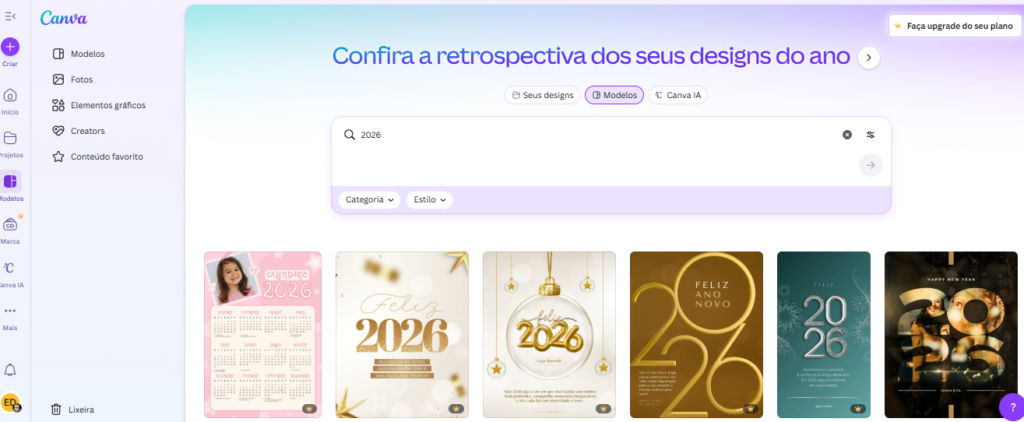
First, access the Canva website and create Your free bill. If you already have an account, log in normally. On the home page, type "new year card" in the search bar.
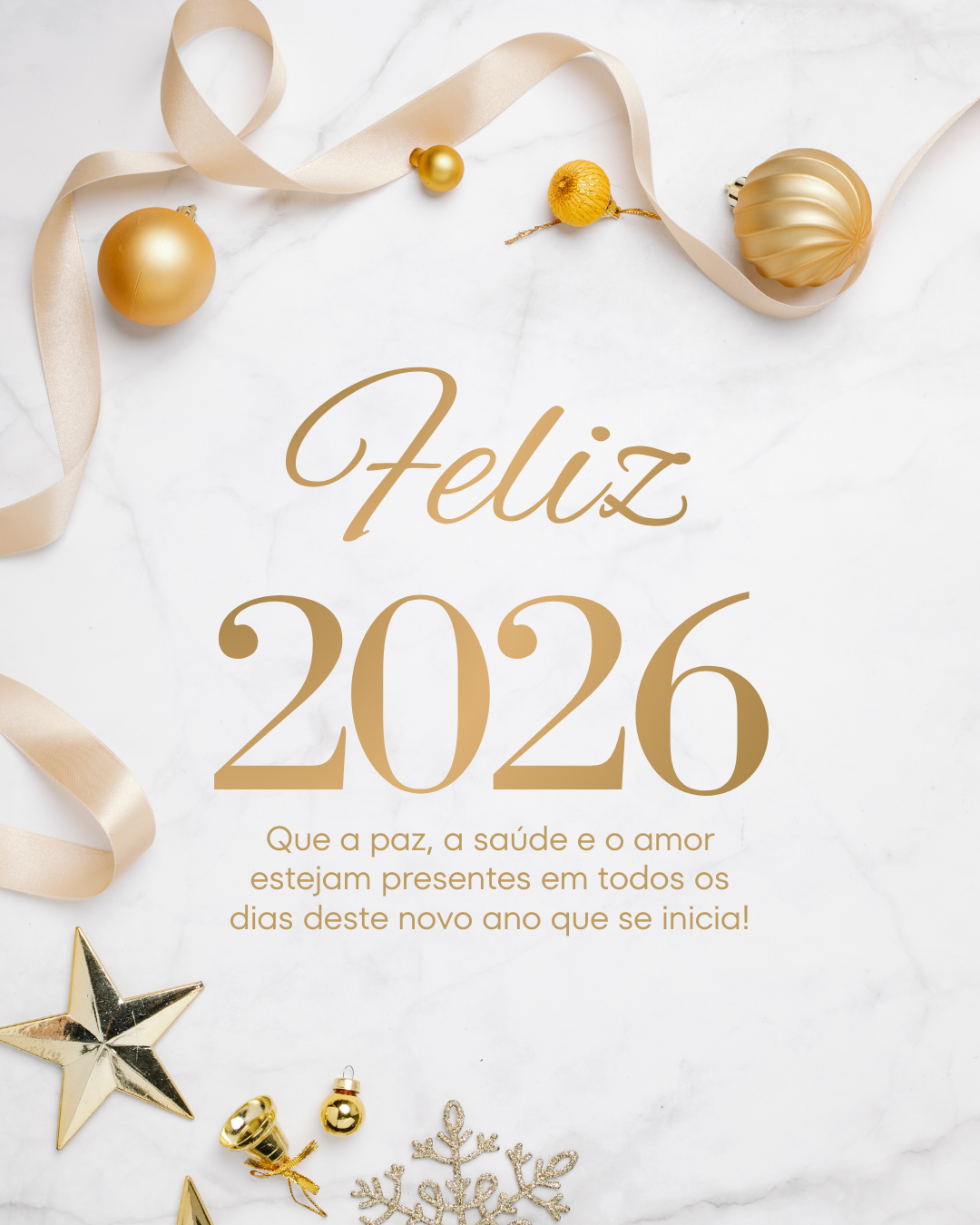
Canva offers hundreds of New Year templates with different styles. You can choose between classic designs with gold and silver, or more modern options with vibrant colors.
Click on the template you like best. Remember that you can completely modify any element of the chosen design.
Customizing Your Card
Choosing Suitable Colors
For 2026, the Trends colors include earthy tones, deep blues and natural greens. But you don't have to follow trends – choose colors that match your personality.
Click any template element to change its color. Canva offers predefined palettes or you can insert specific color codes.
Important tip: Use up to 3 main colors to maintain harmonious and professional design.
Adding Custom Text
Click on the existing text to edit it. You can write messages like "Happy 2026", "May 2026 bring much joy" or create something more personal.
Try different available sources In Canva. For new year cards, elegant fonts like "Playfair Display" or "Montserrat" work very well.
Adjust the text size by clicking and dragging the corners. Keep the main message highlighted and use smaller text for details.
Inserting Decorative Elements
In the side menu, click "Elements". Look for "new year", "fireworks" or "2026" to find decorations themes.
Golden stars, colorful fireworks and stylized numbers can give your card a special touch. Place them in a balanced way in the design.
Remember not to overload the card. Less well-positioned elements cause more visual impact that many elements scattered.
Adding Personal Photos
You want to make the card even more special? Add a picture of yourself or the family. Click "Uploads" in the side menu and select the image from your computer.
After uploading, drag the photo to the card. Use Canva editing tools to adjust brightness, contrast and apply filters if necessary.
Place the photo so that it does not interfere with the readability of the main text. Corners or backgrounds work better than the center card.
Can not open message For 2026
Here are some ideas of custom messages which you can use:
- "2026: A year to realize dreams"
- "May 2026 be full of conquests"
- "Living the opportunities of 2026"
- Gratitude for 2025, hope in 2026
- "New year, new goals, same determination"
You can create bilingual messages if you want to send to foreign friends. Canva supports a number of special languages and characters.
Choosing the Ideal Size
Canva offers several predefined sizes for cards. For cards physical, use "Postcard" (148 x 105 mm) or "Congratulation Card" (127 x 178 mm).
To share on social networks, choose "Instagram Post" (1080 x 1080 px) or "Instagram Story" (1080 x 1920 px) depending on where it will publish.
If you'll send by WhatsApp or email, the square format works best on most mobile devices.
Special Effects and Animations
Canva Pro offers animations Amazing. for digital cards. Effects like "Appear", "Slip" or "Pulsar" can make your card more dynamic.
For New Year's cards, soft animations work better than effects Very flashy. The goal is elegance, not exaggeration.
If you're gonna print the card, don't worry about animations – focus on creating a well balanced and attractive static design.
Saving and Sharing
After finishing the design, click "Share" in the upper right corner. You can download the file in different formats.
For printing, use high quality PDF or PNG. For digital sharing, JPG is enough and takes up less space.
Canva allows you to share directly on social networks or generate a link for others to see your card online.
Print Tips
If you're going to print the card, make sure to use good quality paper. Papers with gramature between 180g and 300g offer best result.
Make sure your printer is calibrated correctly. Very saturated colors on the screen may look different in printing.
Always make one Print test before printing several copies. This avoids waste of paper and paint.
Ideas For Different Publics
For family members, use warm colors and affectionate messages. Photos of special moments make the card more emotional and personal.
For coworkers, keep a more sober design with neutral colors and professional but warm messages.
For close friends, you can dare more in colors and use relaxed language. Internal references and jokes can be included.
Common Errors To Avoid
Do not overload the design with many elements. White space is your friend – it breathes into design and highlights the main elements.
Avoid using many different fonts on the same card. Two complementary sources are more than enough for a professional result.
Always review the text before finishing. Spelling errors may harm the impression that yours custom card It will.
FAQ
Is it possible to create free new year cards in Canva?
Yes, Canva offers thousands of free templates for New Year's cards. You just need to create a free account to access these resources.
What's the best New Year's card size in Canva?
For printing, I recommend the size "Postcard" (148 x 105 mm). For digital sharing, use "Instagram Post" (1080 x 1080 px) that works well on all platforms.
Can I add personal photos to the card?
Sure! Click "Uploads" in the Canva side menu and select your photos. Then just drag to the design and adjust the size as needed.
How to save the card for printing?
Click "Share" and then "Download". Choose PDF format for better printing quality. Make sure to select the high resolution option.
Can you create animations on your new year card?
Yes, but only in the Canva Pro version. Animations are ideal for digital cards that will be shared online or by apps message.